Wrike review: do I recommend it for teams?
May 29, 2026

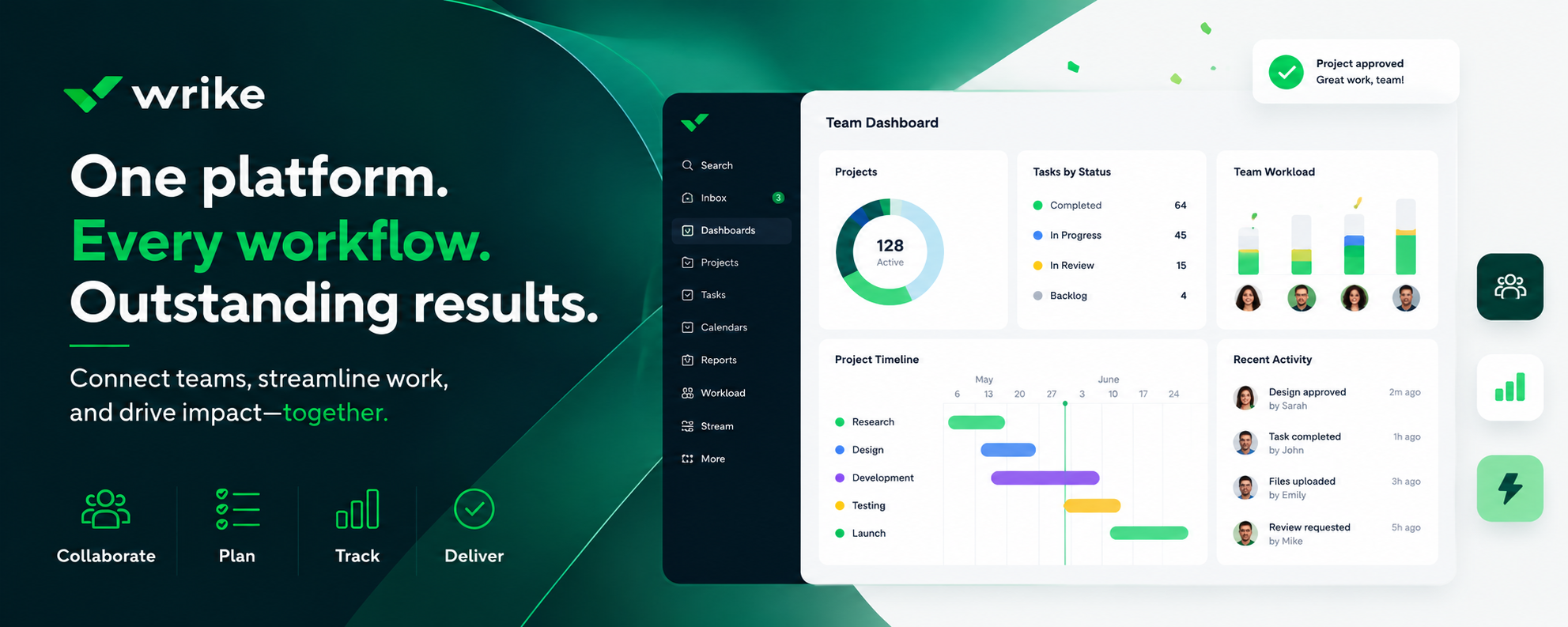
Wrike aims to make teamwork simpler by combining project planning, task tracking, and collaboration in one place. Over the past few weeks, I’ve tested how it performs – from setting up projects and automating tasks to collaborating with teammates. The platform has grown far beyond its early task-management roots, offering robust reporting tools and AI-driven insights that help teams predict risks before deadlines slip.
In this Wrike review, I break down how it performs in practice – from setup and everyday usability to collaboration tools, pricing, and integrations. While Wrike offers a strong set of features, it’s not necessarily the best fit for every team. I explore who’s most likely to benefit from it and whether it’s really worth the investment in 2026.
What is Wrike?
Wrike is a cloud-based project management and collaboration platform that helps teams plan, track, and manage their work in one place. It offers tools like customizable dashboards, Gantt charts, and automation to streamline workflows and keep projects on schedule. From marketing and creative teams to IT and operations, Wrike is used by organizations of all sizes to improve visibility, boost productivity, and simplify team collaboration.
Quick overview: who Wrike is best for?
Wrike suits medium to large teams managing complex, multi‑stage projects. It’s ideal for marketing, creative, IT, and professional‑services teams thanks to customizable workflows, Gantt charts, and resource‑tracking tools. Agencies value its proofing and version control, while IT and product teams benefit from Jira and GitHub integrations and Agile support.
| Overall rating: | 4.1★★★★☆ |
| Price: | From $9.80/user/month |
| Target audience: | Marketing and creative agencies, IT departments and product‑development teams, and enterprises that need strong security |
Wrike offers dashboards, time tracking, real‑time editing, file sharing, and strong security through role‑based access control. It scales well and includes enterprise features like AI insights and resource management. However, its depth can overwhelm small teams, setup takes time, and pricing is high for full functionality. I found the mobile app less capable, and key security features are limited to premium plans.
In short, Wrike shines when you need enterprise‑level project management and collaboration. On the other hand, if you’re a small team or just managing simple tasks, its price and learning curve make simpler tools like ClickUp or Asana more appealing.
Pros
- Task management with customizable dashboards, Gantt charts, time tracking, and real-time analytics
- Custom workflows and automations for repetitive tasks or specific processes
- Real‑time editing, file sharing, and threaded comments for discussions
- Resource management, advanced reporting, and high security compliance
Cons
- A steep learning curve and complexity require training and can slow down adoption
- Premium plans and add‑on modules can be expensive, which makes Wrike overkill for small teams or straightforward task tracking
- Mobile apps are not as intuitive as the desktop version, making on‑the‑go management a bit hard
- Some users report slowdowns on very large projects and limited support on lower‑tier plans
Visit Wrike
Wrike: pricing and plans
Wrike offers a flexible pricing structure – from free entry-level task management to enterprise-level platforms with deep customization and analytics. Most plans include a free trial and require no credit card to start.
| Plan | Best for | Key features | Price (per user/month) |
| Free | Teams getting started | Intelligent task management, basic project tools | $0.00 |
| Team | Small teams | Effective team management, collaboration tools | $10.00 |
| Business | Teams across an organization | Customizable workflows, automation, reporting | $25.00 |
| Enterprise | Large teams | Enterprise-grade security, scalability, SSO | Contact sales |
| Pinnacle | Teams with complex work needs | Advanced tools, analytics, resource management | Contact sales |
Wrike’s pricing starts with a Free plan for beginners and scales up to custom-priced Pinnacle and Enterprise tiers designed for large organizations with complex needs. The cheapest premium option is the Team plan at $10.00 per user/month, while the most expensive are the Enterprise and Pinnacle plans, which require contacting Wrike for a quote.
All Wrike plans come with robust features, but teams should budget for potential extras. Premium add-ons (advanced integrations, security, analytics) require additional payment beyond the base user license.
Storage is metered per user, with fees for overages. User count constraints can force higher-tier subscriptions (e.g., 5-seat minimum on Business).
And while mobile/desktop apps are free, some integrations (e.g., Salesforce) are not. I recommend considering these details, so you can avoid unpleasant surprises and ensure the plan you choose truly meets your needs without hidden costs.
I recommend choosing the Business plan, which offers the best value for most medium to large teams, balancing cost with access to key features like advanced integrations, resource management, and automation. I find it ideal for teams that need scalability and robust project control without excessive add‑ons, as it provides enough flexibility without jumping to the costly Enterprise tiers.
Wrike’s key features and how they work
Below is a breakdown of Wrike’s core capabilities – what problems they solve, how I experienced them, and issues worth flagging.
Tasks, views, and planning
Wrike’s task and planning tools give you multiple ways to visualize and manage your work, depending on what best fits your workflow.
The List (or Table) view feels like a well-organized spreadsheet – you can reorder tasks, expand or collapse groups, and use custom fields to sort information. It’s especially efficient for scanning backlogs or making bulk edits.
The Board (Kanban) view offers a drag-and-drop experience. I used it for a content pipeline, and it felt intuitive and responsive. However, once subtasks piled up, cards started to feel a bit cramped.
The Gantt (Timeline) view is Wrike’s power feature. You can set dependencies, drag milestones, and watch how shifting one deadline automatically nudges linked tasks down the line.

Finally, the Calendar view makes planning by date much easier. I often toggled between the calendar and table to see what was due soon versus what needed scheduling for later – a nice balance between strategy and day-to-day management.
Automation and AI helpers
Wrike’s automation and AI tools are built to eliminate repetitive tasks – things like updating statuses, sending reminders, routing work, or triggering alerts – while also helping you spot potential risks before they snowball.
In my testing, I set up a simple automation rule such as “When status changes to All completed, change assignee to Item author”. This way, when the task is completed, the owner is reminded to review it instantly, which saves me from a few forgotten handoffs.

You can scale these automations across entire projects or departments, and even connect them with other tools using Wrike Integrate. For example, you can set Wrike to automatically post a Slack message when a task is completed.
Additionally, Wrike offers AI-powered Work Intelligence. It allows you to add AI agents to your workspace that analyze projects to flag risks, predict delays, and suggest priorities. This helps teams identify issues early and adjust quickly.

However, the AI works best with your input – it’s a helpful advisor, not an all-knowing tool. Also, some advanced automation features (like cross-app workflows or custom API triggers) are limited to higher-tier plans, and too many rules can create confusion.
Time tracking and resource management
Wrike’s time tracking and resource management tools make workload planning clearer and more balanced. In testing, I found them especially helpful for seeing how much work each project really required – something that’s easy to misjudge when handling multiple tasks.

The built-in time tracking feature lets you start and stop a timer for any task (though only one timer can run at a time). It’s simple to use – hit play when you start working, pause when you’re done, and Wrike automatically logs your tracked hours. I found it a bit similar to ClickUp, because you can also enter time manually afterward if you forget to record it live.
Personally, for project management systems, I like the timer for chunk-based work sessions. It keeps me accountable for how long specific activities take. That said, I occasionally forgot to pause it, which led to some inflated entries – an easy mistake, but one that can be fixed manually.
You can also assign effort hours to tasks, define job roles, and immediately see how these assignments affect everyone’s schedule across multiple projects. The interface feels smooth – tasks can be dragged around or reassigned in seconds, and the color-coded bars make it easy to distinguish between underloaded and overburdened team members.
In my own test, this view helped me spot overlapping deadlines that could’ve quietly burned out my copywriter, allowing me to redistribute tasks before it became a problem.
Wrike’s capacity checks are a quiet lifesaver – as you assign tasks, it instantly shows if someone’s workload is too heavy, helping you rebalance before problems start. Advanced tools like skill matching, multi-role booking, and detailed forecasting are reserved for higher-tier plans, but the built-in features are more than enough for most small and mid-sized teams.
Collaboration, approvals, and proofing
Wrike’s collaboration, approvals, and proofing tools bring all project discussions and creative feedback into one place. Everything – from comments to file versions – lives within the task itself, which makes it much easier to keep track of what’s been approved and what still needs changes.
When testing it, I found the proofing feature particularly smooth. You can attach images or design mockups directly to a task, annotate them with arrows or comments, and request approvals from reviewers. Every version and decision is stored, so feedback stays connected to the right file instead of getting lost in a cluttered inbox. It’s ideal for teams working with visuals, videos, or marketing assets where multiple people need to weigh in.

Wrike also simplifies task intake through request forms. Even people without Wrike accounts can submit structured requests – for example, a Design request form that automatically routes the task to the right team and approval flow. In my test, this replaced messy email chains and made it easy to track incoming work from start to finish.

Another standout is cross-tagging and shared spaces. You can tag a single task under multiple folders or projects without duplicating it, which is a lifesaver for cross-team collaboration.
There are a few limitations, though. Advanced proofing – like reviewing interactive web assets or HTML prototypes – is available only in higher-tier plans such as Pinnacle, or through legacy add-ons. External reviewers can also be restricted to view or comment-only permissions unless you pay for extra licenses.
Reporting and dashboards
Wrike’s reporting and dashboard tools give you a clear, real-time view of your projects – what’s on track, what’s delayed, and where your team might be overloaded.
Building a dashboard in Wrike is simple. You can combine charts, KPI cards, and data tables, then drag and drop widgets to create a personalized view for each stakeholder. Filters let you focus on what matters most – for example, only overdue tasks or items assigned to a specific team. Once it’s set up, it becomes your command center for tracking deadlines and workloads.

I also found real-time reports extremely useful. You can create custom reports, group or filter data, and schedule automatic emails to send updates to your team or clients. That means no more asking people to export spreadsheets or chase for status updates – Wrike does it for you.
For those on higher-tier plans, advanced analytics and BI tools take things further. You can dig into trends, benchmark project performance, and build more complex visualizations. It’s ideal for larger teams that rely on data-driven planning.
In my testing, dashboards quickly became my go-to place for checking overall project health. I could see at a glance where deadlines were slipping or which team members were nearing capacity.
Templates and project blueprints
Wrike’s templates and blueprints are a huge time-saver – they help you skip repetitive setup steps and start projects with a solid structure already in place. Instead of building everything from scratch, you can reuse one of your own preconfigured setups.

There’s a good variety of prebuilt templates to pick from – marketing campaigns, agile sprints, product launches, onboarding checklists, and more. Each one comes with standard tasks, dependencies, and even request forms. When I tested it, using a template with all these elements already baked in cut my setup time by about 20-30 minutes.

You can also create custom blueprints from existing projects or folders. These blueprints aren’t just static copies – they preserve your workflow logic, automations, and dependencies. When you launch a new project from a blueprint, everything snaps into place automatically, which means less copy-paste hassle and fewer setup mistakes.
One thing to keep in mind: if your internal processes evolve often, you’ll want to update your templates periodically. Otherwise, they can carry outdated steps or old logic that no longer fits how your team works.
Mobile and desktop apps
Wrike’s mobile and desktop apps keep your work accessible wherever you are, so you can stay connected even when you’re away from your main workstation.
The platform offers native apps for Windows, macOS, iOS, and Android that sync seamlessly with the web version. You can view and edit tasks, update statuses, comment, and even check Gantt charts right from your phone.
However, Wrike on mobile feels quite cramped – to see all project details, you’ll need to scroll sideways a lot. The same goes for many other views. That’s why the app works best for quick approvals or replying to messages, but not for doing full remote work.
The desktop app feels smoother and faster than using Wrike on a browser – there’s less lag when switching between projects or large dashboards. That said, mobile apps are better suited for light edits; complex dashboards or heavy task editing are easier to handle on a desktop.
Set up and ease of use
Wrike’s setup is quick and straightforward – you can sign up with a Google, Microsoft, or business email and be up and running in minutes. The onboarding flow walks you through creating your first workspace, adding teammates, and choosing a project template, which makes it beginner-friendly even for those new to project management tools.
Once inside, Wrike feels intuitive: its interface uses folders, spaces, and dashboards to keep work structured but not overwhelming. The drag-and-drop task management, customizable workflows, and clear navigation tabs make it easy to adapt the platform to different team sizes and processes.
That said, because Wrike offers a lot of advanced features – like automation rules, resource management, and detailed reporting – the learning curve can be steeper if you dive into everything at once. Still, the guided setup, built-in templates, and helpful tutorials make the early experience smooth and approachable.
Integrations and compatibility
Wrike integrates smoothly with most major business ecosystems, making it easy to connect your existing tools without a heavy setup.
| Integration | Supported tools | What you can do | Limitations or paywalls |
| Google Suite | Gmail, Google Drive, Google Calendar | Turn emails into tasks, attach Drive files, sync deadlines with calendar | None major – all available on free and paid plans |
| Microsoft Suite | Outlook, Office 365, OneDrive, SharePoint | Create/update Wrike tasks from emails or documents; attach files from OneDrive/SharePoint | Add-ons must be manually installed in each Office app |
| Microsoft Teams | Teams (native integration) | Add Wrike projects as tabs, view/comment on tasks | Gantt charts are view-only inside Teams |
| Slack | Slack integration | Send or receive task updates via messages | Available on all plans |
| Jira | Jira Software | Two-way sync tasks/issues (Wrike Sync by Unito) | Paid add-on; not in Free or Team tiers |
| Salesforce | Salesforce CRM | Link Wrike projects to opportunities/accounts; view Wrike tasks inside Salesforce | Available only on Business/Enterprise; setup needed |
| Automation platforms | Zapier, Wrike Integrate | Build custom automations; connect thousands of apps | Wrike Integrate has monthly task usage caps; Zapier free tier has action limits |
| File storage | Google Drive, OneDrive, SharePoint, Dropbox, Box | Attach and edit files directly from Wrike without reuploading | Storage quotas depend on plan; file-size limits apply |
| Others | Adobe Creative Cloud, QuickBooks, Power BI | Collaborate on creative or analytical work directly from Wrike | Some advanced connectors (BI, CRM, accounting) in Pinnacle or Enterprise tiers |
In short, Wrike’s integration ecosystem is one of its biggest strengths – especially for teams already using Google or Microsoft tools. Most everyday connections (like Drive, Slack, or Teams) are available to everyone, but deeper syncs with platforms like Jira, Salesforce, and advanced automation systems are paywalled under Wrike’s premium or enterprise tiers.
Performance and reliability
Wrike earns praise for being a powerful, feature-rich project management platform – but user feedback across Reddit, desktop reviews, and app stores paints a mixed picture of its performance and reliability. Most users agree that Wrike delivers on functionality, but it can feel slow or buggy at times, especially on mobile and when handling large projects.
Many users note that Wrike’s load times can be sluggish, particularly when working with big boards or complex reports. Redditors and reviewers say it performs well on smaller projects but can lag or take several seconds to load data-heavy dashboards. The new Lightspeed interface reportedly improved things somewhat, yet large teams still experience occasional slowdowns. Some users describe having to wait longer for updates to sync or pages to refresh once their workspace grows.
On the stability side, Wrike’s desktop and web versions are generally reliable. They may freeze occasionally or take a moment to reload, but major crashes are rare. Users often prefer the browser version, describing it as the most stable and responsive overall. The desktop client is convenient for multitasking, though it sometimes needs a restart to clear small glitches.
The mobile apps, however, receive consistent criticism. Both Android and iOS users complain about crashes, lag, and missing features. Many call the apps glitchy or even unusable for managing large numbers of tasks, while others say they’re fine for quick check-ins or approvals. One iOS reviewer reported frequent crashes when opening subtasks, while Android users mentioned long load times and difficulty navigating between projects.
Security and compliance
Wrike implements robust security measures and adheres to strict compliance standards to protect user data.
- Authentication and access control. Wrike supports two-factor authentication (2FA) and single sign-on (SSO) with Google, Microsoft, and SAML-based providers. Role-based permissions let admins set granular roles, restrict sensitive project visibility, and generate access reports. Larger teams can use audit logs, password/session policies, and IP allowlisting to enforce secure access.
- Data protection. All data is encrypted in transit using TLS 1.2 and at rest with AES-256. Files, databases, and backups are fully encrypted. Enterprise users can enhance security with Wrike Lock, enabling them to manage their own encryption keys.
- Compliance and certifications. Certified for SOC 2 Type II, ISO/IEC 27001, 27017, 27018, and 27701; holds CSA STAR and TX-RAMP certifications. Fully compliant with GDPR and CCPA.
- Data residency. US data is stored in secure data centers in California and Iowa. EU customer data remains in EU-based data centers.
- Governance tools. Audit logs, access tracking, password complexity enforcement, and network access controls ensure compliance and accountability across the workspace.
Wrike’s strong encryption, trusted certifications, privacy safeguards, and detailed admin controls make it a secure and reliable choice for companies in the US and worldwide.
Conclusion
After testing Wrike across real project scenarios, I’d say it’s a capable project management tool for medium to large teams.
It combines flexible task views, time tracking, automation, and detailed reporting in a single workspace. This gives managers full visibility into workloads and progress. Its proofing tools, custom workflows, and integrations with tools like Microsoft Teams, Slack, and Google Drive make collaboration smooth and efficient once you get the hang of it.
However, Wrike isn’t for everyone. Smaller teams or freelancers might find it too complex – and the best features, like resource management and advanced automation, sit behind higher-tier plans.
In short, Wrike is worth it if you need structure, scalability, and control. For teams juggling multiple projects or departments, its versatility and enterprise-level reliability justify the investment. But if your needs are simpler, you may find lighter tools like ClickUp or Asana more budget and time-friendly alternatives.
Best AI tools deals:
Most popular

4.8/5
★★★★★
From
€20/month
Get special deal
4.8/5
★★★★★
From
$15.60/month
Get special deal
4.2/5
★★★★☆
From
$8.33/month
Get special deal
FAQ
Is Wrike free?
Yes, Wrike does have a free plan. This free tier provides basic project and task management, supports subtasks, offers integrations with cloud storage, and includes mobile/desktop access. However, it has limitations – for instance, you're capped at 200 active tasks (including subtasks) in the free plan.
Is Wrike good for small businesses?
Yes, Wrike is great for small businesses with complex projects that need structure and room to grow. But if your team just needs simple task tracking, lighter tools like Trello, Asana, or ClickUp may be easier and more affordable.
Does Wrike have time tracking?
Yes, Wrike has built-in time tracking. Users can use a timer to log the time it takes to complete tasks or manually enter time entries.












Post Comment